![Orchidea logo white with orange dot.png]](https://knowledge.orchidea.dev/hs-fs/hubfs/Orchidea%20logo%20white%20with%20orange%20dot.png?width=161&height=51&name=Orchidea%20logo%20white%20with%20orange%20dot.png)
📌This feature is available on Orchidea Professional and Enterprise plans
⚠️You need to workspace admin or owner to modify the settings
Here is how you add Orchidea as a data source to Microsoft Power BI:
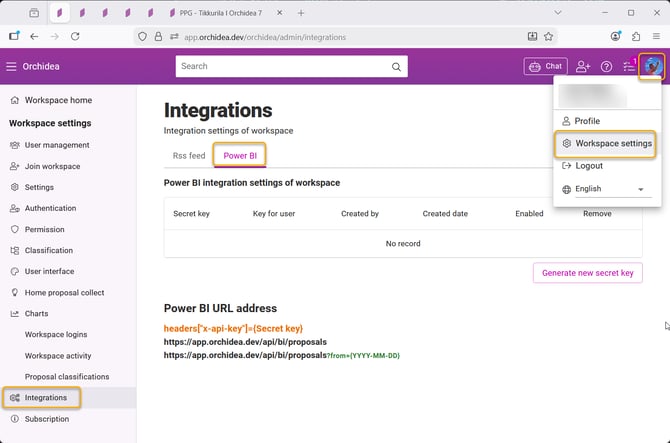
- Click Workspace settings in your user profile menu. Then select Integrations in the left navigation. Click Power BI tab.
-
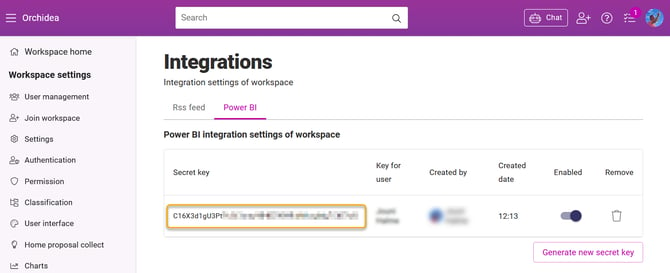
- Click Generate new secret key and select the user whose access rights the integration will reflect. The integration can always read data from all public channels, challenges and workshops in the workspace. Access to private channels, challenges and workshops will be granted to those channels, challenges and workshops where the selected user is a member.
- Once you selected the user, click Submit.
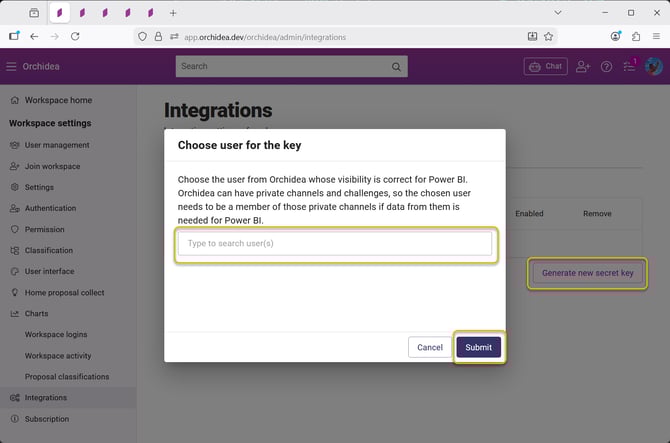
- Copy the Secret key that you just created.
-
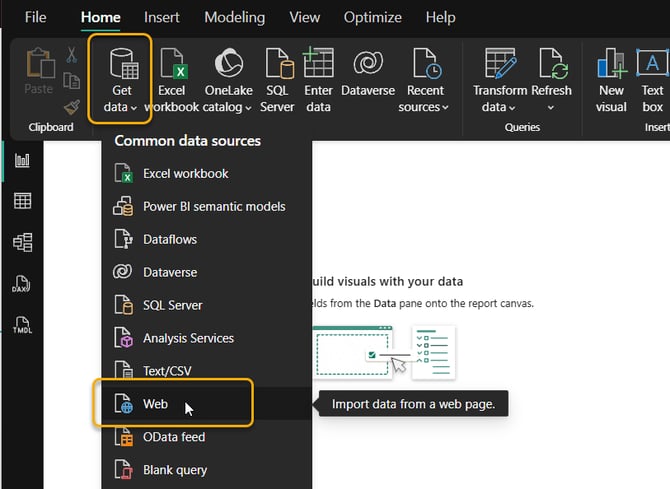
Open Microsoft Power BI Desktop on your PC
- Click Get data in the ribbon and select Web
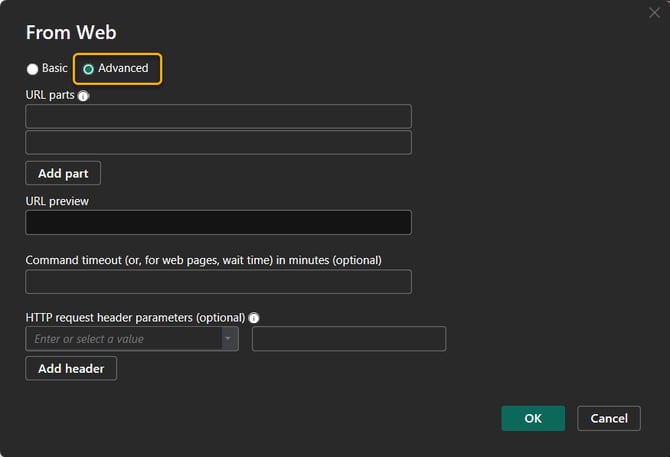
- Click Advanced in the appearing window
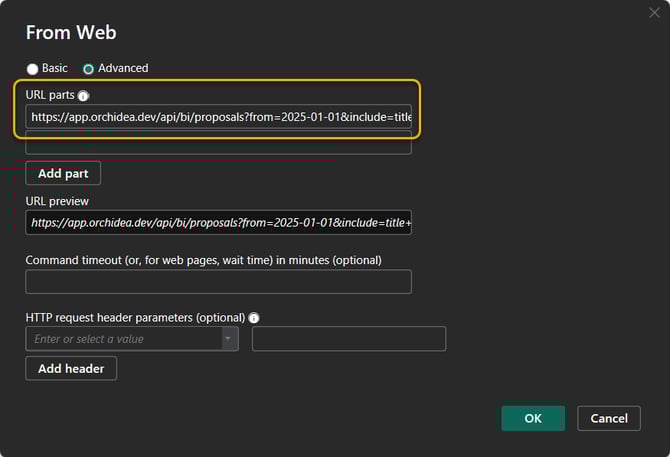
- Form the URL part that defines the data
- Is starts with the common https://app.orchidea.dev/api/bi/proposals?
- You must include the from query parameter. It tells the API: “Give me proposals updated or deleted since this date.”
- For example: https://app.orchidea.dev/api/bi/proposals?from=2025-01-01
- Give the date in format YYYY-MM-DD (example: 2025-01-01)
- Define the data fields you want to include by adding them after the date. Data field part starts with &include= text, and the data fields are separated with + -sign.
- For example proposal title and status: https://app.orchidea.dev/api/bi/proposals?from=2025-01-01&include=title+status
- Data field values are
- title
- createdAt
- viewCount
- commentCount
- channelName
- link
- status
- hashtags
- creators
- handlers
- statusHistory
- reactions
- classification
- Fill in the above-formed URL to URL parts field in the window
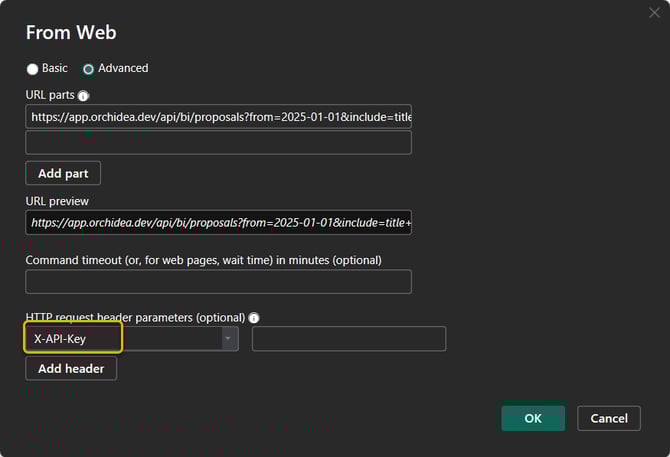
- Copy text X-API-Key to the left field in HTTP request header parameters
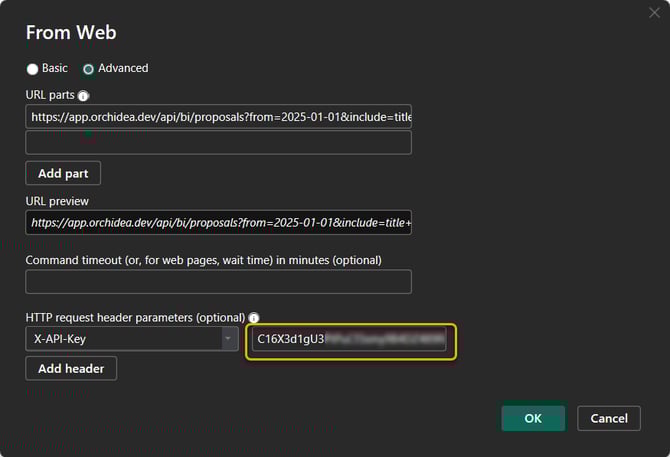
- Copy the Secret key that you created in step 3 of this article to the right field in HTTP request header parameters
- Click OK to add Orchidea as a data source to Microsoft Power BI.
- If you receive an error message after clicking OK, decrease the data set size by selecting a date closer to today in the from query parameter in step 7.b of this article.