Copying and pasting images to Orchidea
You can add multiple images from your computer at once by copying and pasting
1. Copy the images to your clipboard

Choose Copy from the dropdown or use CTRL+C t copy the files on your clipboard.
2. Paste images onto the page.
Choose CTRL+V to paste your clipboard content to the page
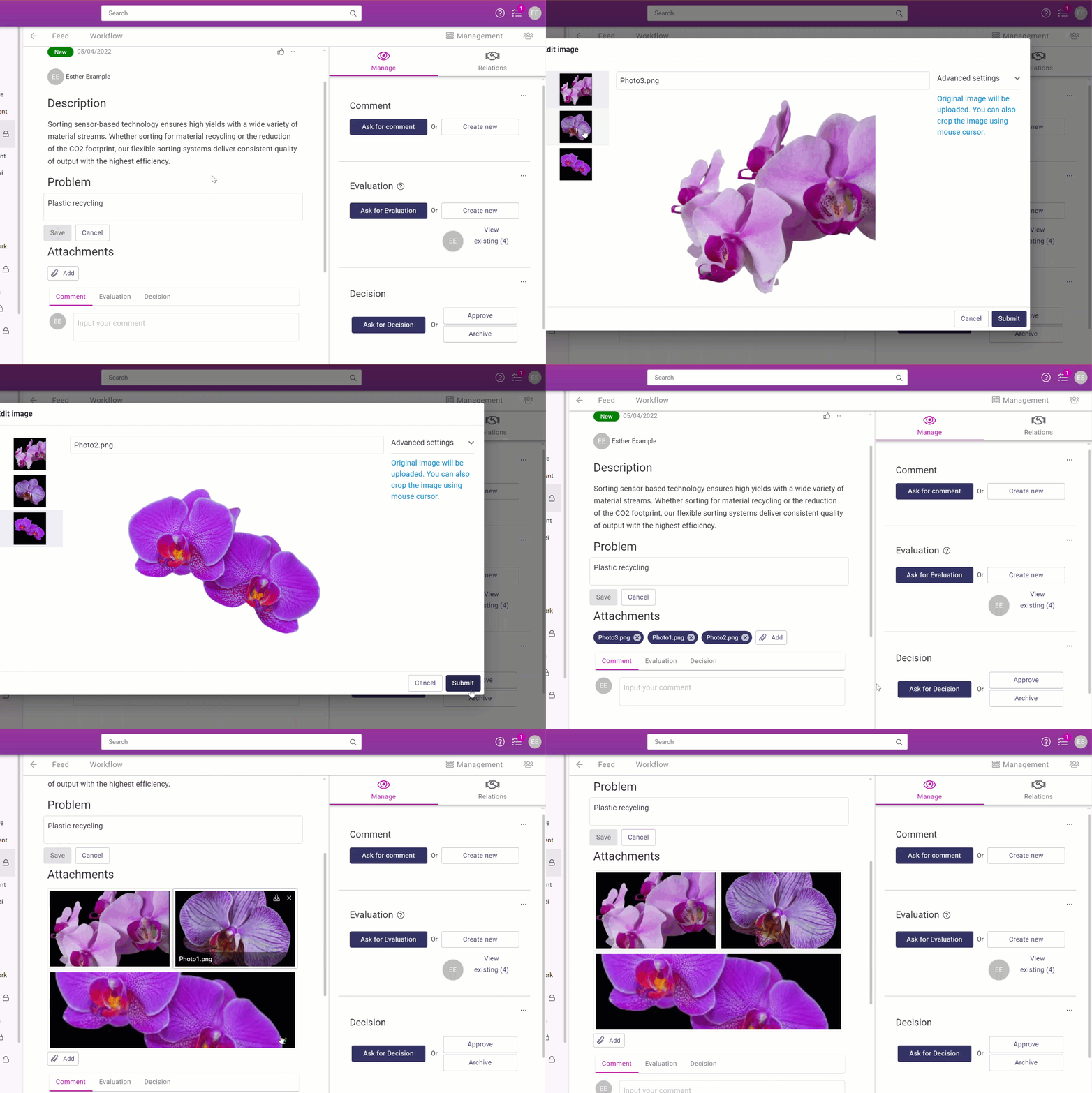
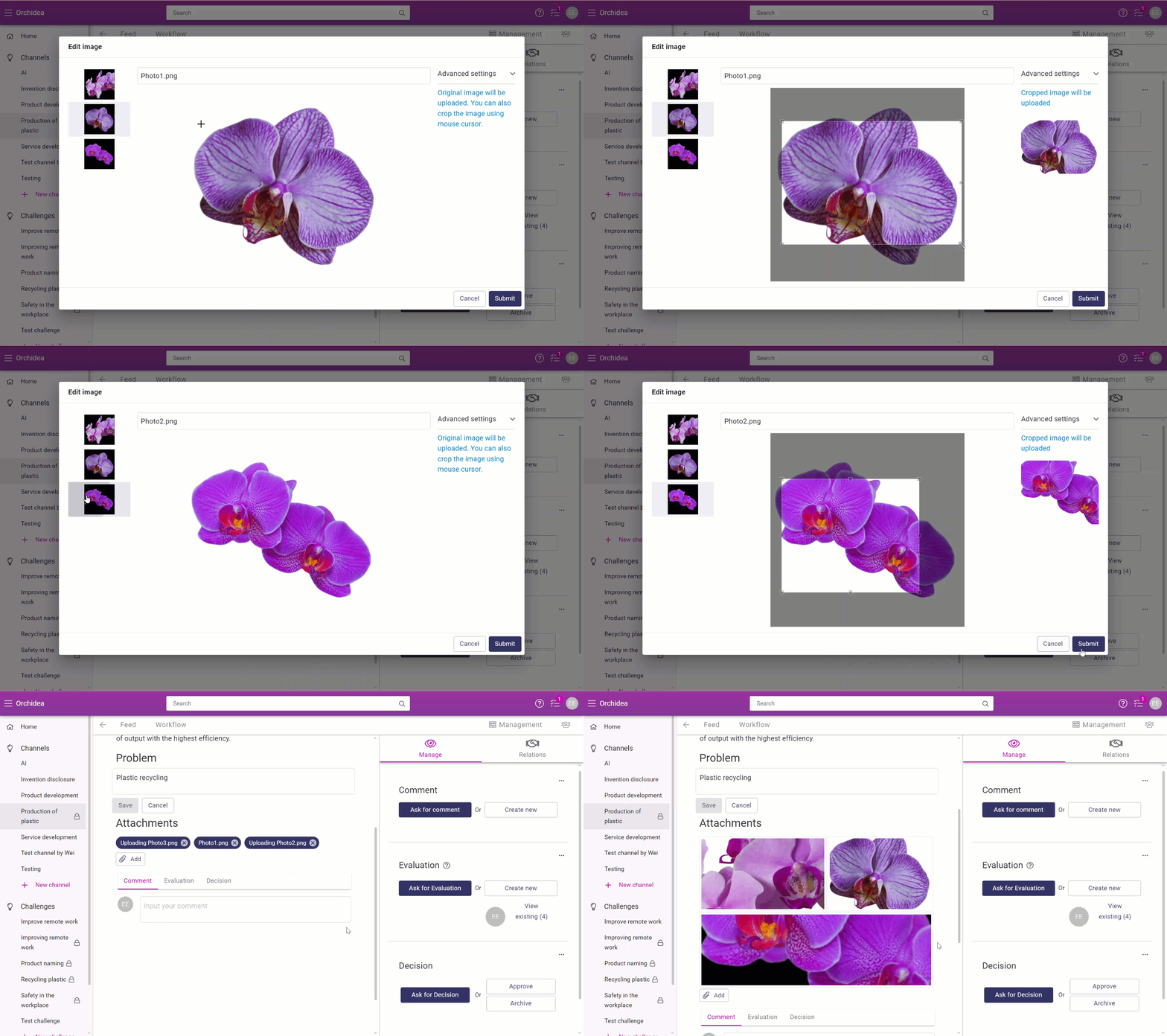
3. Crop the images with the mouse cursor if necessary.
Choose the desired area and press submit. You will see a preview of the cropped image on the right
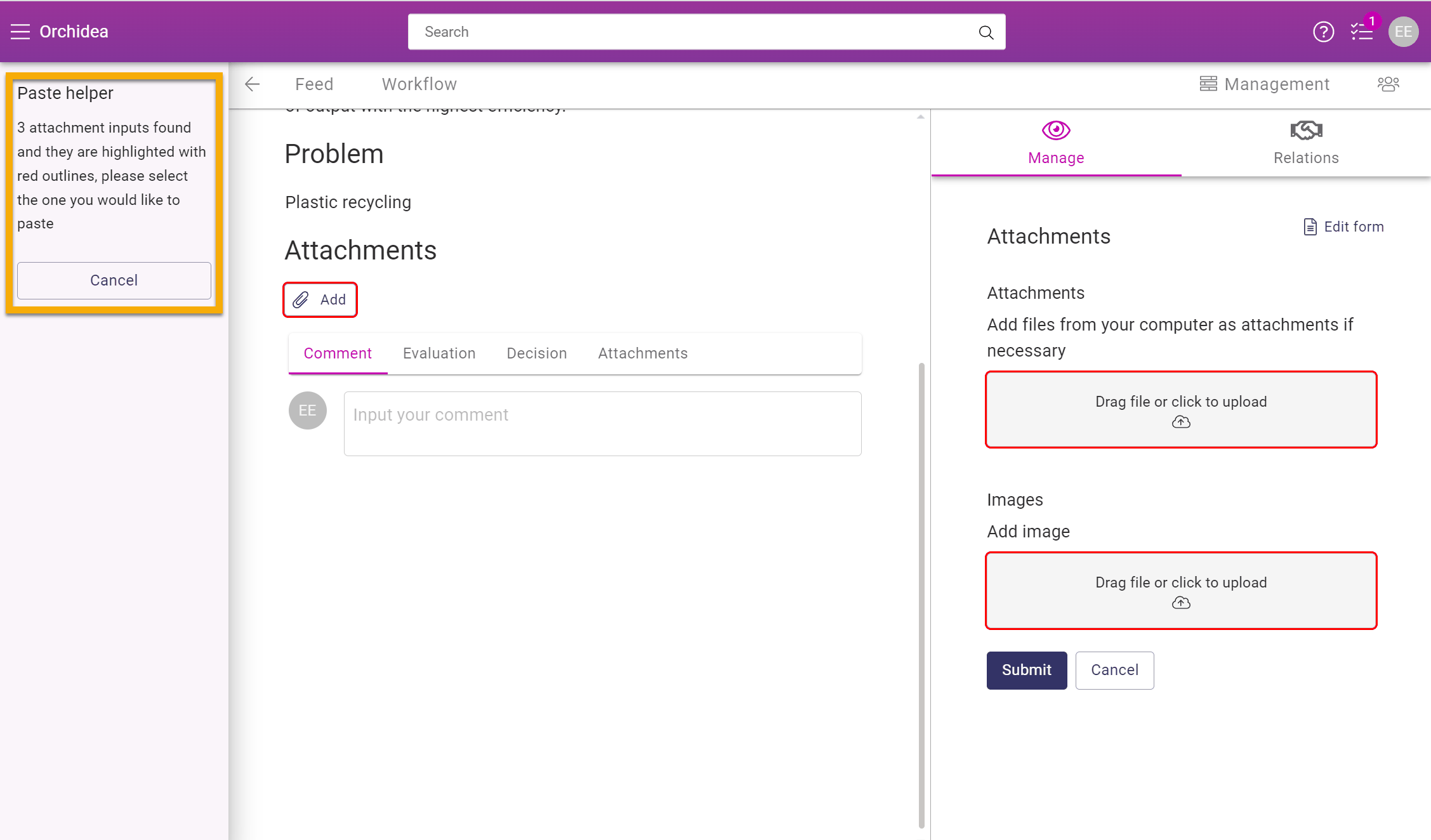
4. If there are multiple input fields for images, they will be highlighted in red.
The paste helper will appear on the left. Click on the red section you want to load the images to and they will automatically load.