
Challenge settings
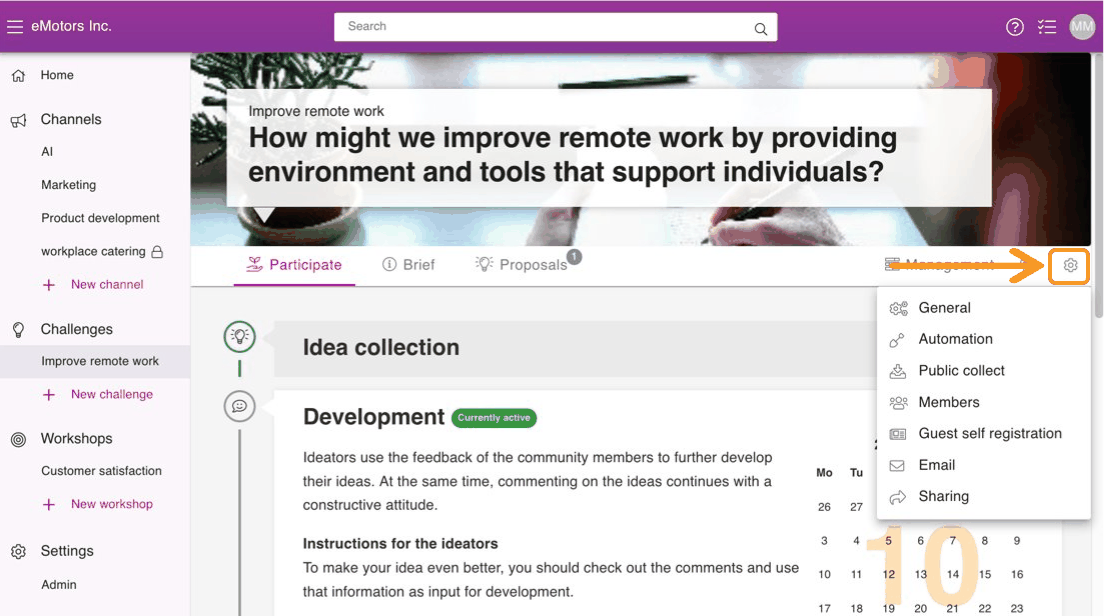
You can access challenge settings by pressing the sprocket icon on the upper right corner of a challenge.
General
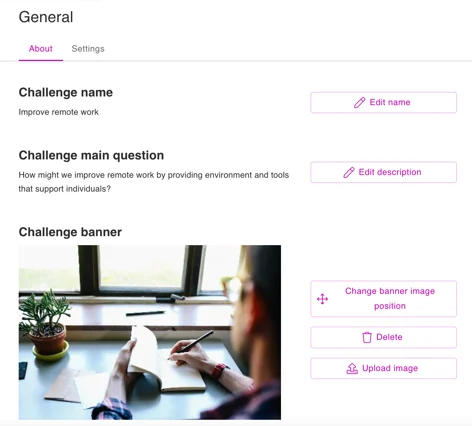
From the General, you can change the challenge's name, main question, banner image and use following features.
Archive the challenge
Press the Archive button to archive the challenge.
Notice!
⚠️ If you archive the challenge, it will be moved to the archive and removed from the menu.
Delete challenge
To delete a challenge, press the delete button.
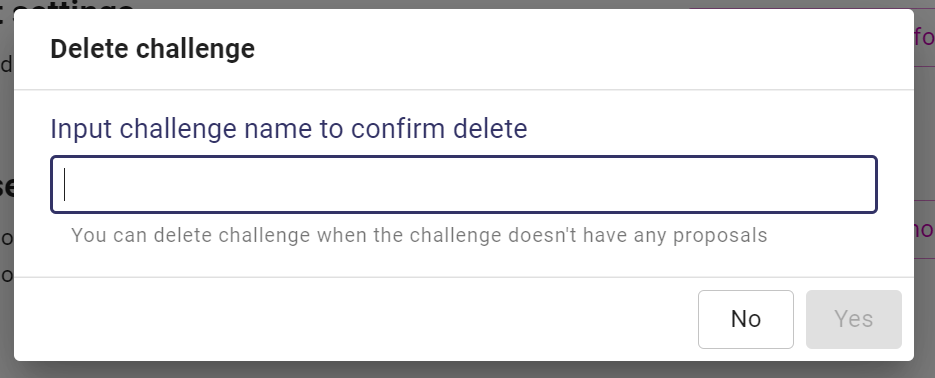
Confirm the deletion of the challenge by typing the name of the challenge. You can only delete a challenge when it has no proposals.
Settings
From the Settings you to change the following settings:
Feed classification
Enable classification by selecting Set classification.
Use the Classification option to set the input type and select the Classification option:
Anonymous settings
The administrator can specify in the settings whether to allow challenge owners to allow their channels to accept anonymous suggestions and comments.
The links below will direct you to the channel management guidelines, the challenge settings will work in the same way.
INFO
💡 Here's how to work around anonymous settings:
Instructions for the administrator can be found here.
Instructions for the challenge owner can be found here.
Challenge visibility
You can choose whether the challenge is open or private.
INFO
💡 If you want to concentrate on the challenge before it is visible to all users, you can work on it in private mode and switch to open mode when you are ready.
Automation
In the automation settings, you can specify who is automatically responsible for the proposal.
Public form
Public collection allows you to collect suggestions and comments from parties outside of Orchidea users.
You can enable public collection in the same way as for channels.
Members
Manage challenge members, invite new members, manage challenge roles and send reminders to challenge invitees
Guest self-registration
In Guest self-registration , you can generate links that external users can use to self-register as a guest member of a channel. In contrast to Sharing , Guest self-registration requires registration to Orchidea.
Email
In the Email tab you can create a thank you email, where you can e.g. explain shortly how proposals are handled in your channel. To put this function into use, press the toggle switch to blue.
Sharing
In Sharing you can generate a link that can be used to access the challenge without registration. This link can be shared to external stakeholders.
INFO
💡 Read more about how to share a link: Sharing a challenge with external stakeholders