Workflow list-view
You can follow workflow in kanban-view, list-view and bubble chart. In this article we go through step-by-step how to use the workflow list-view in your advantage.
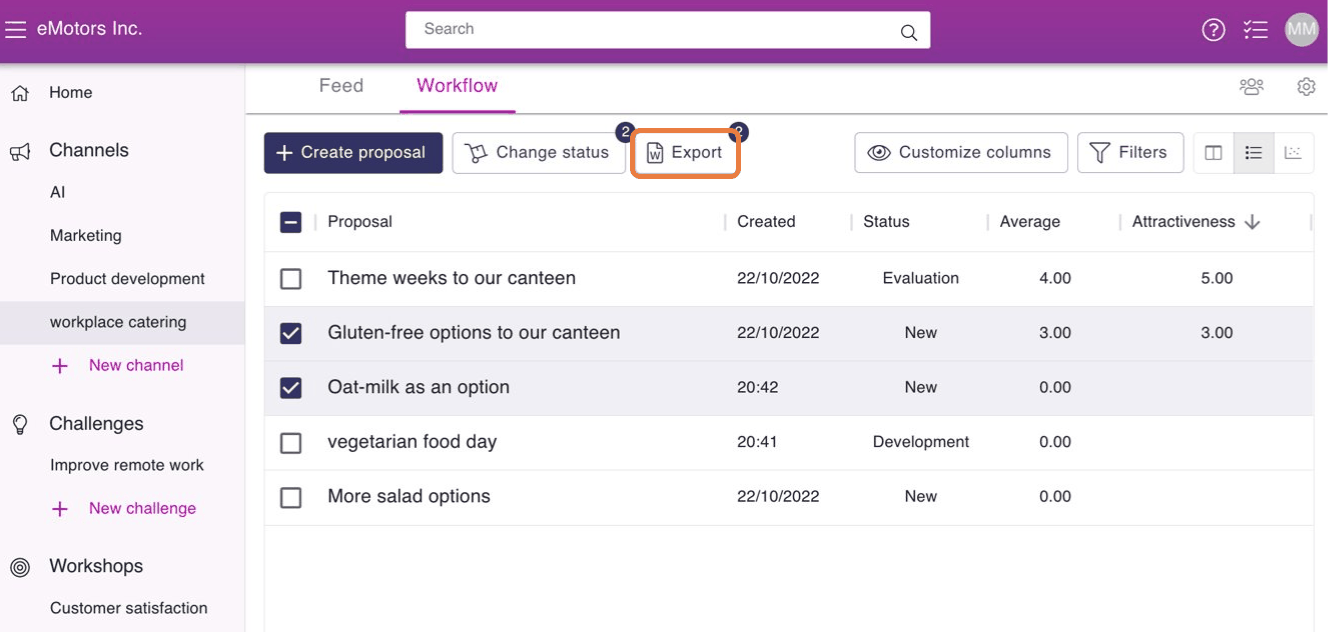
List-view is one of the views of workflow. It can be used to sort proposals by creation date, workflow status and numeral values. In addition you can also change the status of several proposals at the same time or export multiple proposals to Word in simultaneously.
Moving to list-view
- Go to the Channel of your choice.
- Move to Workflow tab.
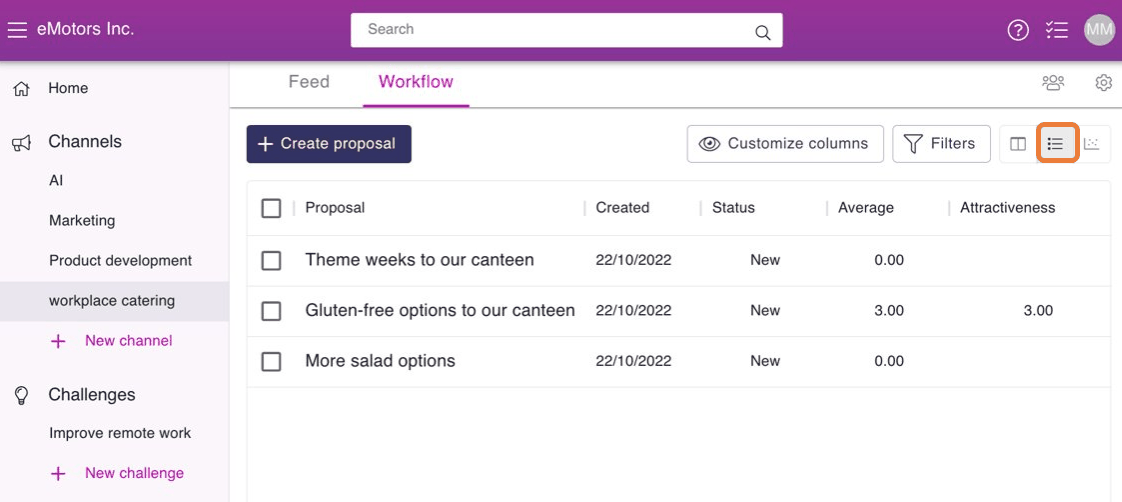
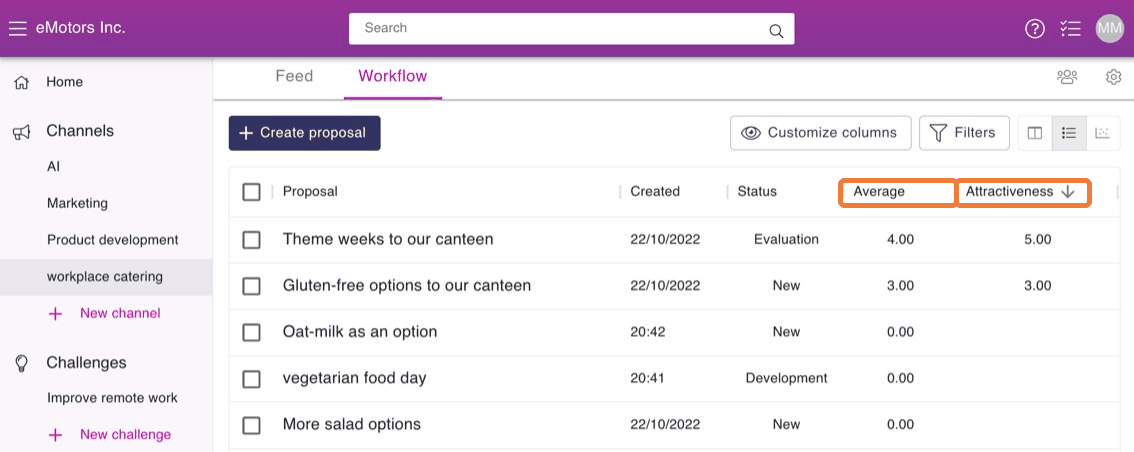
- From there press on the list view icon above the kanban statuses. List-view looks like this:
Sorting proposals by creation date and status
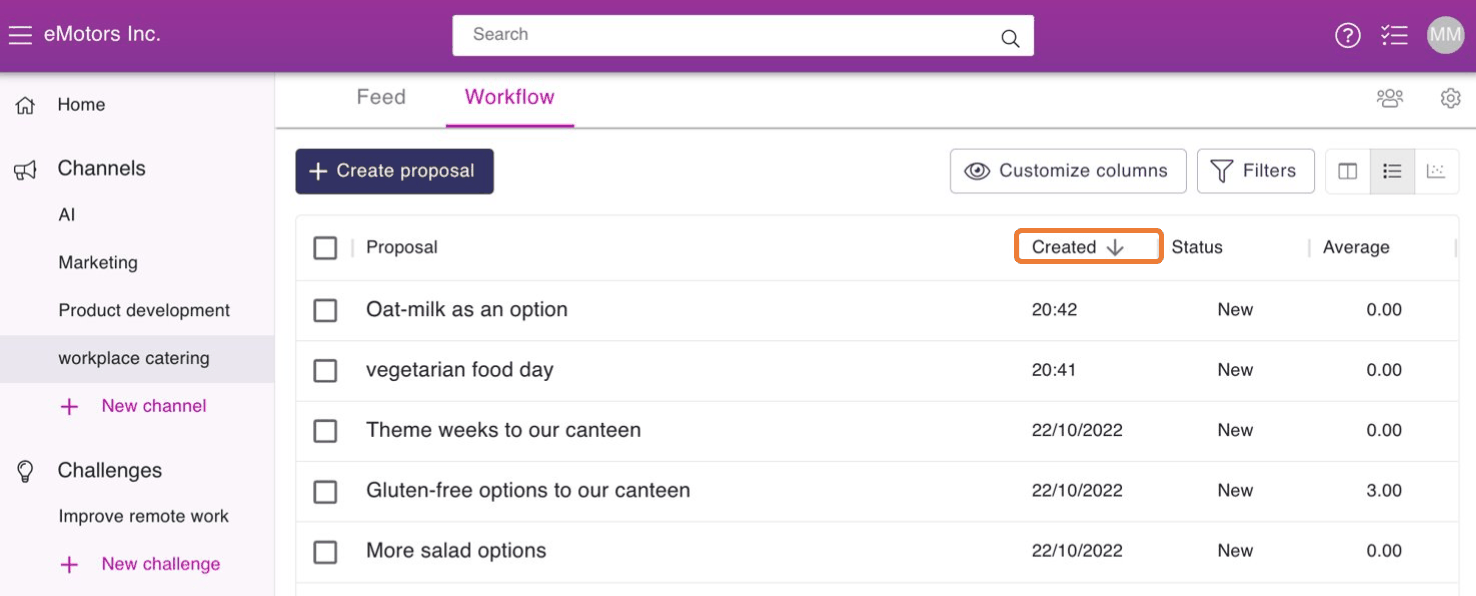
To sort proposals by creation date go to list-view and click on Created.
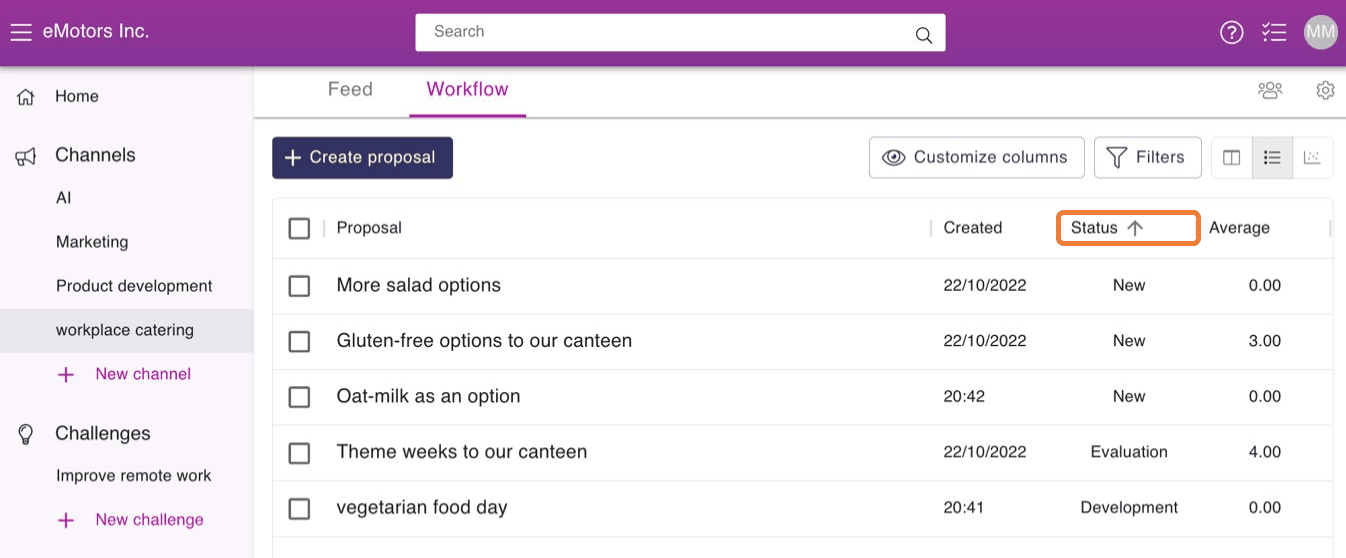
When you want to sort proposals by their status press on Status:
Adding numeral values to list-view
It is also possible to add numeral values to list-view. Numeral values collected in proposal process forms be shown in their own columns if needed. Typically it's recommended that numeral values are asked in only one form.
In order to see numeral values in your columns, you and others have to give numeral evaluation on proposals. Here you can see an article about how to give numeral evaluation: Giving numeral evaluation.
Here's how you can enable numeral values in list-view:
- Go to the Channel of your choice.
- Move to Workflow tab.
- From there press on the list view -icon above the kanban statuses.
- Hover any column title with your mouse to see the three dots icon. Open Manage columns to select evaluation related columns to the list view.
You can also sort numeral values by pressing on Average or on the numeral value caption :
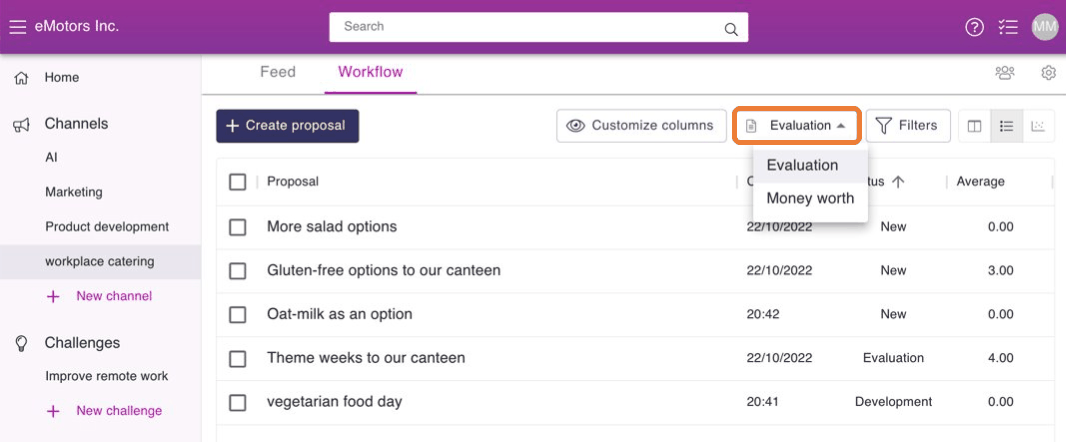
You're going to see an another directory next to the Customize columns if numeral values are collected in more than one form. From that directory you can choose that from which form are you going to look for numeral values. Here's how it looks:
Changing the status of several proposals at once
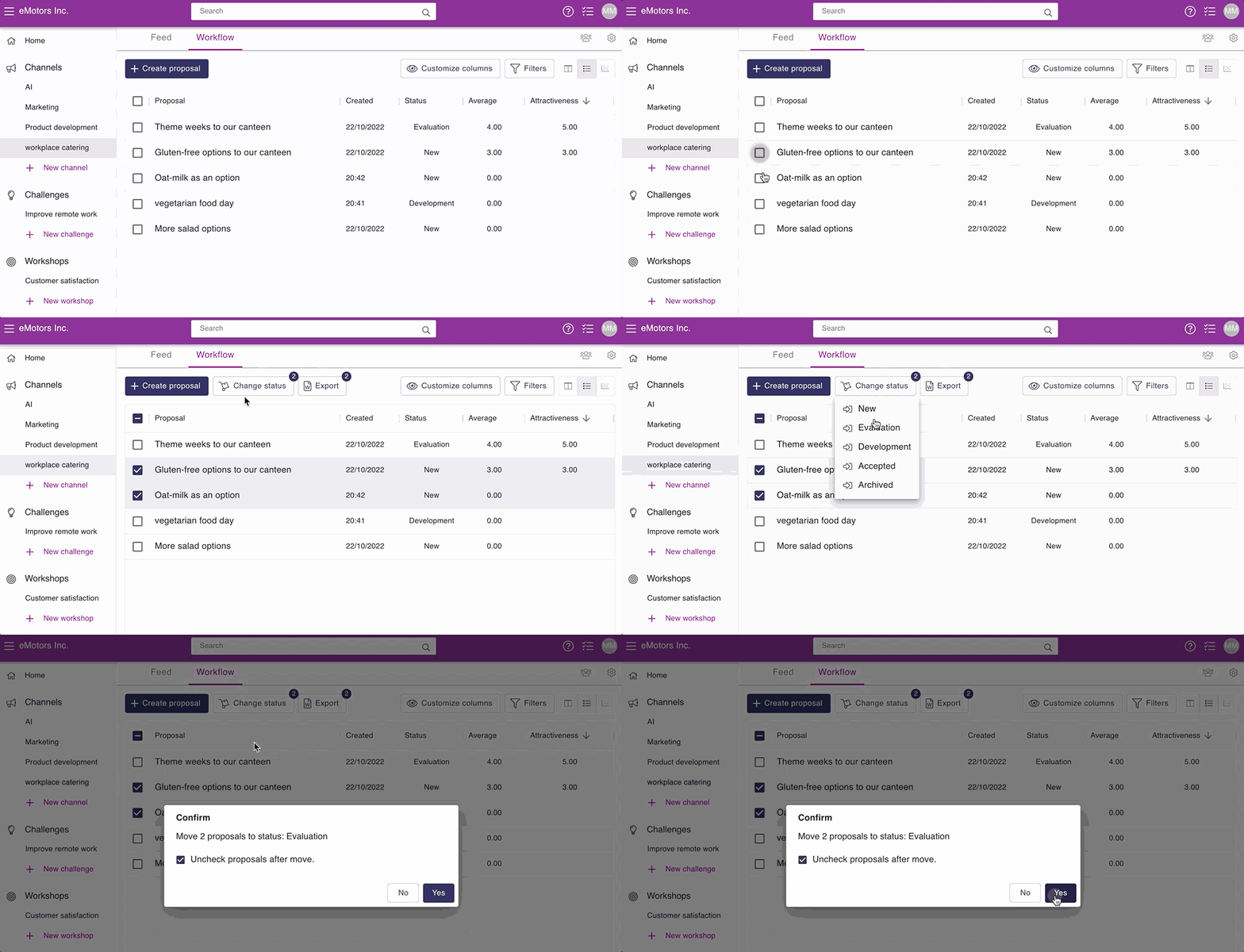
To change the status of multiple proposals in the list-view do this:
Go to the List-view of your chosen Channel.
Click on the checkbox next to the proposal name on all the proposals you want to move to a different status.
When you have selected all the proposals you want, click the Tools menu above the list view.
Choose which status the proposals will be changed to.
Confirm your status change by clicking Yes.
Exporting several proposals to Word at the same time
- Go to the List-view of your chosen Channel.
- Click on the checkbox next to the proposal name on all the proposals you want to export.
- When you have selected all the proposals you want to, click the Tools menu above the list view.