
Merge proposals
Channel, challenge, and workshop managers can merge multiple proposals into one
Channel, challenge, and workshop managers and owners can merge proposals in multiple ways:
- By merging a related proposal with the primary proposal in the Relations tab
- In the list view of a channel, challenge, or workshop
In both cases, there are two ways to create the merged proposal:
- AI merge: AI drafts a new proposal by combining the descriptions of the merged proposals.
- Simple merge: Orchidea copies the descriptions of the merged proposals into one combined version.
Merging in the relations tab
Follow these steps to merge proposals through the Relations tab of a proposal:
Open the channel, challenge, or workshop where the proposals that you want to merge are located.
Open the first proposal that you want to merge.
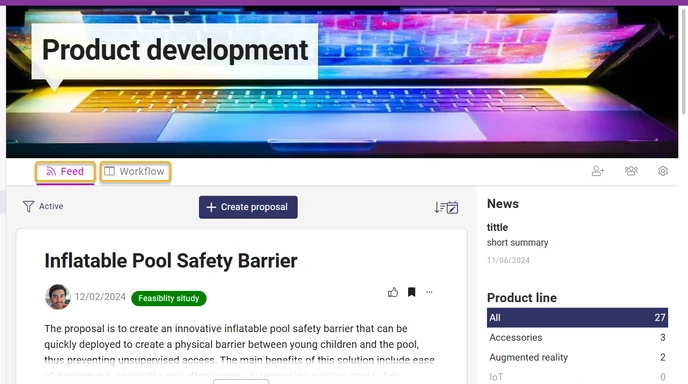
In a channel, open the proposal home page by clicking the proposal in either the Feed or Workflow tab.
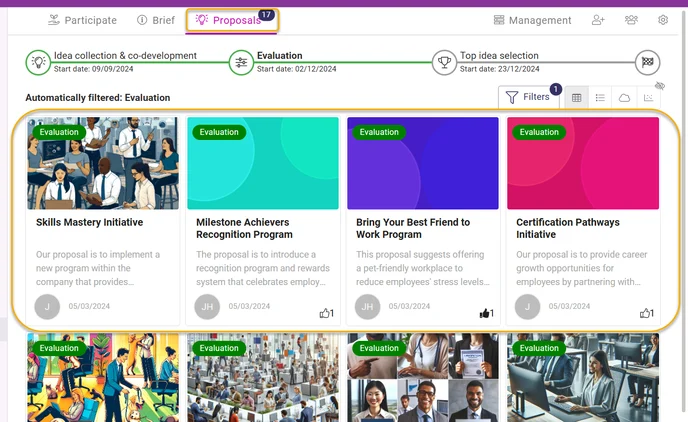
In a challenge, move to the Proposals tab and open the proposal by clicking it.
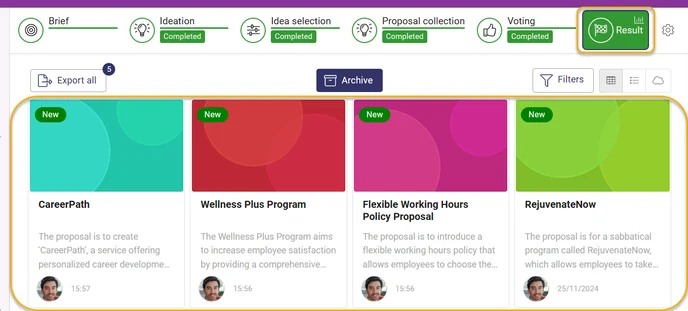
In a workshop, move to the Result phase and open the proposal by clicking it.
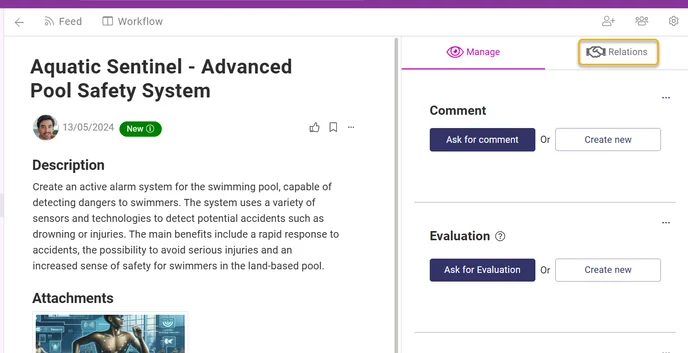
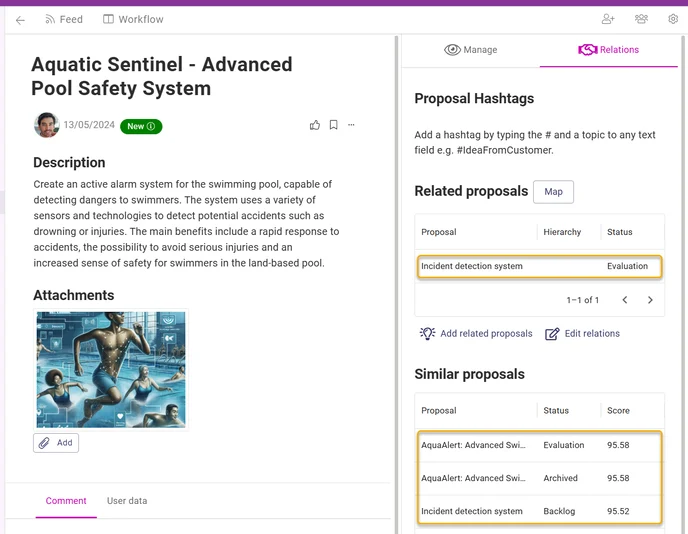
Click the Relations tab on the right-hand side of the proposal home page.
Click the name of the proposal that you want to merge with the primary proposal in the middle column.
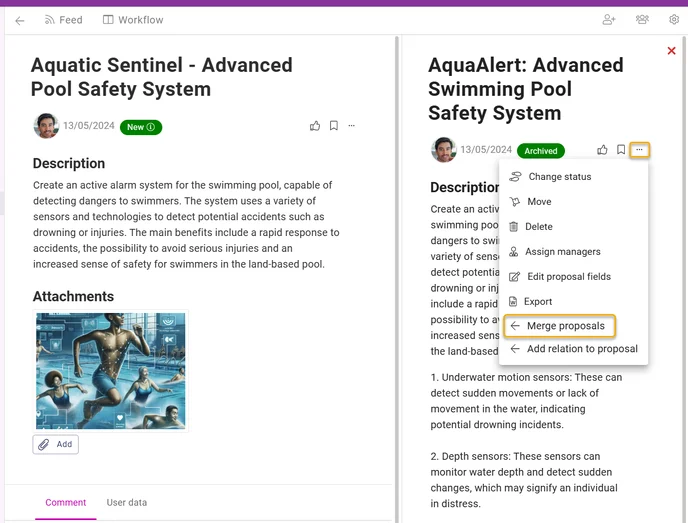
Open the three-dot menu of the related proposal and select Merge proposals.
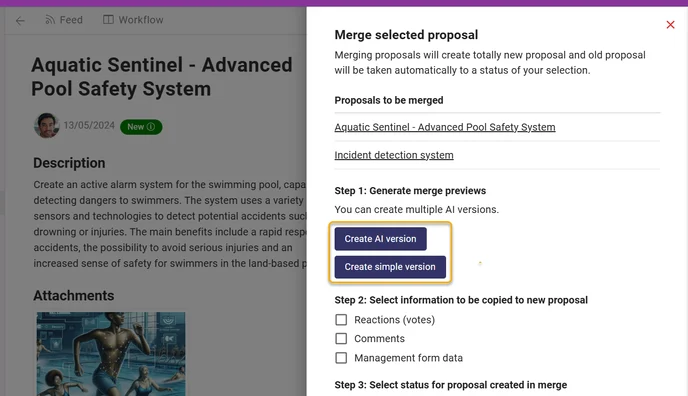
Click Create AI version or Create simple version to create a merged version of the two proposals.
- An AI version is created by a large language model (LLM).
- In a simple version, Orchidea copies the descriptions of the merged proposals into one combined version.
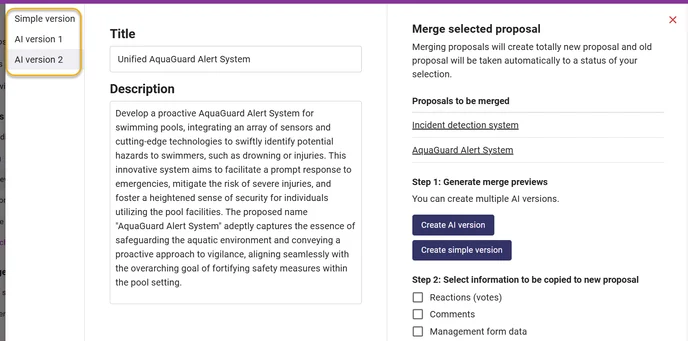
You can click Create AI version multiple times if you are unhappy with the first version created by AI. You can move between the versions by clicking the vertical tabs on the left side of the merged version. You can edit the versions by clicking the fields of the version and editing the field contents.
When you are ready to finalize the merge, you still have to decide a few additional things:
- Step 2: Do you want to copy reactions, comments, and management form data such as reviews, evaluation, and decisions from the original proposals to the proposal created in the merge?
- Step 3: What status should the proposal created in the merge receive?
- Step 4: Do you want to change the status of the original proposals?
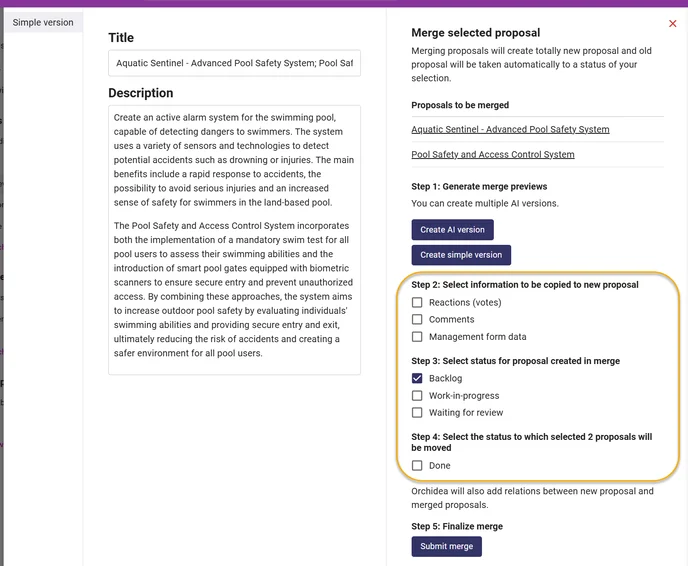
When you are ready to merge the proposals, click Submit merge.
Merging in the list view
Open the channel, challenge, or workshop where the proposals to be merged are located.
Move to the list view.
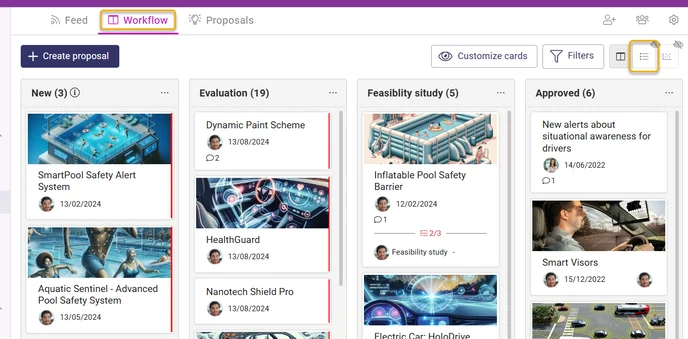
In channels, open the Workflow tab and change to the list view.
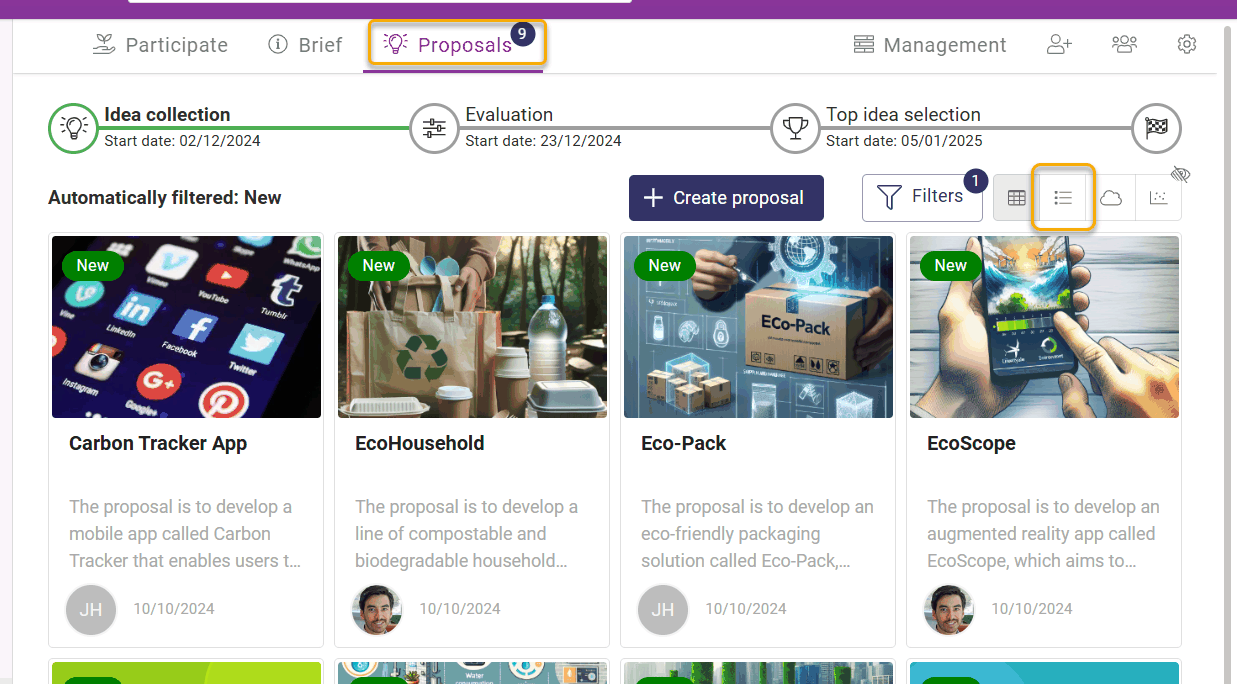
In challenges, open the Proposals tab and change to the list view.
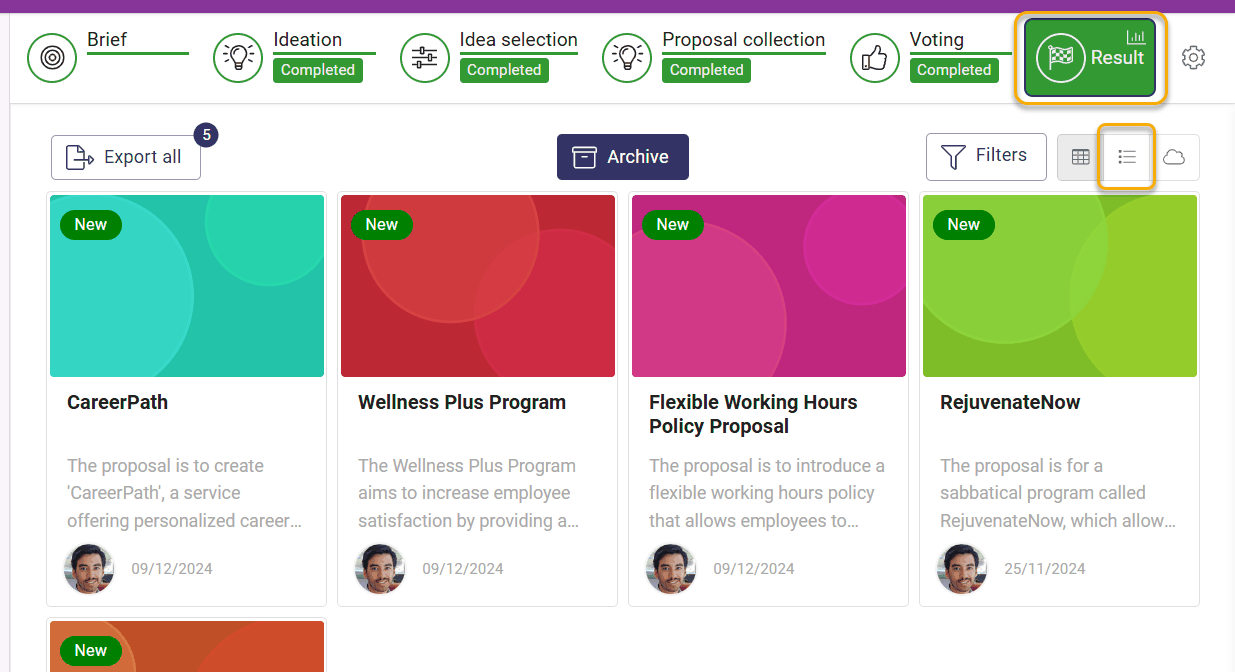
In a workshop, move to the Result phase and change to the list view.
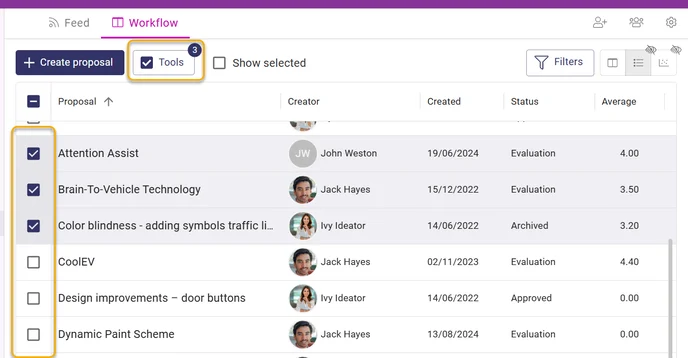
Select the proposals you want to merge by selecting them on the left side of the proposal name. Then open the Tools menu and click Merge Proposals.
In the opening window, select Create AI version or Create simple version to merge the selected proposals.
- An AI version is created by a large language model (LLM).
- In a simple version, Orchidea copies the descriptions of the merged proposals into one combined version.
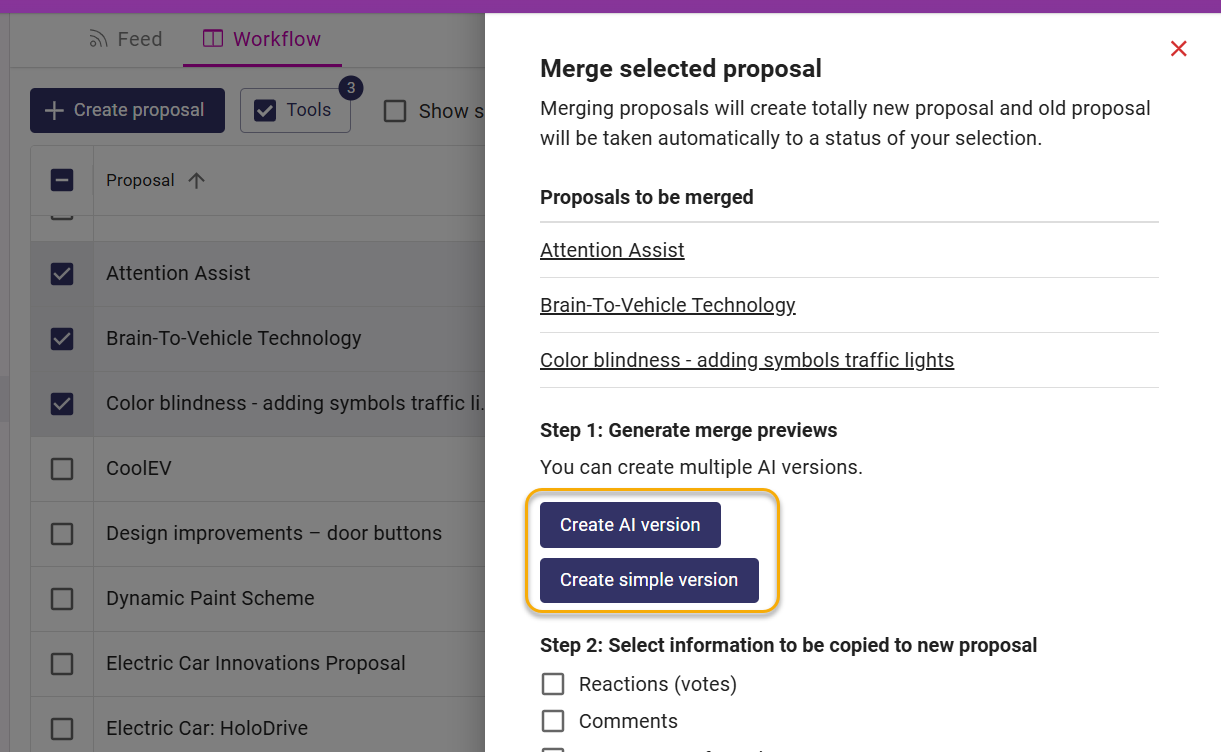
You can click Create AI version multiple times if you are unhappy with the first version created by AI. You can move between the versions by clicking the vertical tabs on the left side of the merged version. You can edit the versions by clicking the fields of the version and editing the field contents.
When you are ready to finalize the merge, you still have to decide a few additional things:
- Step 2: Do you want to copy reactions, comments, and management form data such as reviews, evaluation, and decisions from the original proposals to the proposal created in the merge?
- Step 3: What status should the proposal created in the merge receive?
- Step 4: Do you want to change the status of the original proposals?
When you are ready to merge the proposals, click Submit merge.