Delete or block Orchidea users
In this article, we go through how to block or delete Orchidea users.
Notice!
⚠️ You must be a workspace admin or owner to change these settings
When you want to prevent users from using Orchidea, you can either block their sign-in or delete the user altogether.
- block user sign-in: the user will no longer be able to log in to Orchidea, but their user profile will remain in Orchidea and they can be reactivated as a user later. Blocked users are not accounted towards the user count in the Subscription management of Orchidea.
- deleting a user: the user can no longer log in to Orchidea and their user profile will be permanently deleted from Orchidea.
Despite being blocked or deleted, the suggestions, comments, and other information they have entered will continue to appear in Orchidea under their name.
Block user sign-in
Here's how to block user sign-in in Orchidea:
- Click your user avatar icon in the top-right corner and select Workspace Settings from the menu.
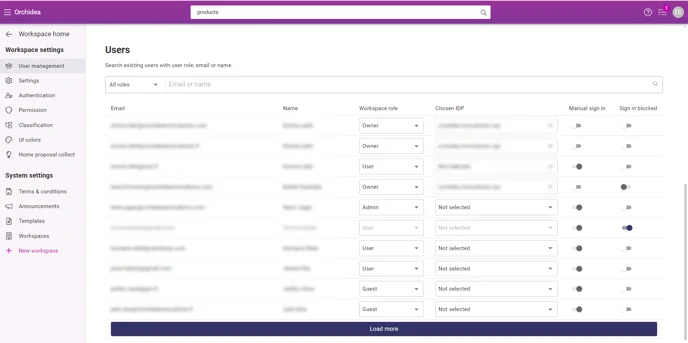
- Click User management in the left menu.
- Press the toggle switch under Sign in blocked to activate the blocking
- Once the toggle switch is blue the person can't sing-in to Orchidea.
Deleting a user
If you want to delete a user permanently, do the following:
- Click your user avatar icon in the top-right corner and select Workspace Settings from the menu.
- Click User management from the left menu.
- Click the email address or name of the user you want to delete.
- In the bottom left corner of the user profile window that appears, click Delete
- In the confirmation window that appears, click Yes to confirm the deletion of the user
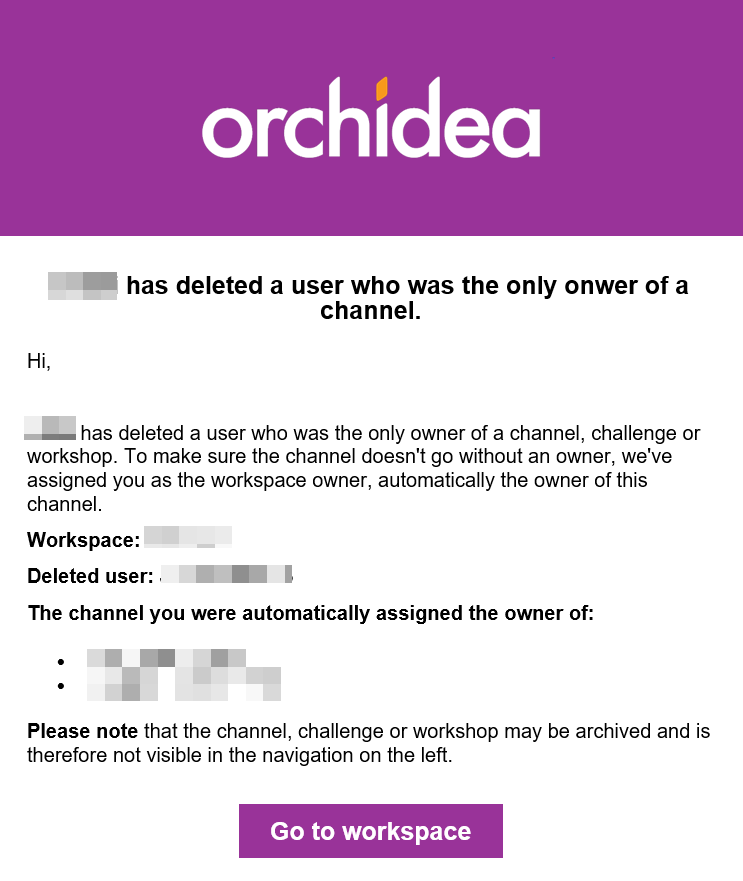
If a deleted user was the only owner of a channel, workshop, or challenge, the workspace owners will automatically be made the owner of the channel, workshop, or challenge. Workspace owners will be informed of this change automatically in an email sent to them.