
Changing the colors of the workspace
You can customize the colors of the Orchidea workspace to match the look and feel of your organization.
You can customize the colors of the UI to suit your needs.
Click your user avatar icon in the top-right corner and select Workspace Settings from the menu.
Click UI colors in the left menu.
You can customize the colors of the top banner and primary and secondary features.
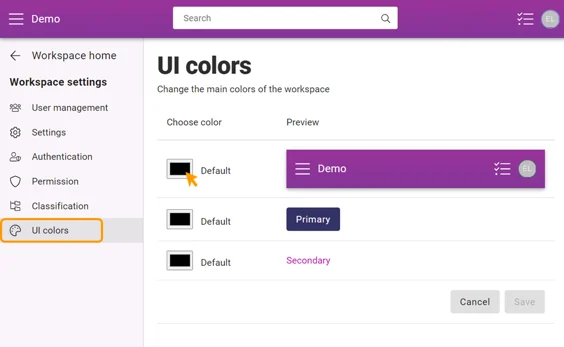
Click the boxes under Choose color. A window opens, where you can choose the color from. You can choose the color from the color map or type the RGB, HSL or HEX number of the chosen color.
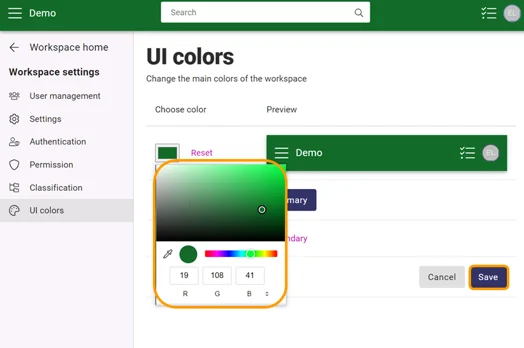
Once you have selected the colors, click Save.